
Lunith Commerce OS
Organize, plan and track your business in one place.
The operating system for what your business sells, what each sale keeps, and what to do next: your products, digital or physical, the channels you sell through and their fees, and a weekly review.
Built in Notion, with a guide · One-time · Access as soon as your payment clears
Built right, kept right: if anything is broken or unclear, we fix it within 3 to 7 business days.
What keeps a small business on the floor
- The numbers live in scattered sheets and platform dashboards, and the sheet meant to join them up is always a week behind.
- Every channel takes its fees its own way, so profit is gross minus a guess.
- Nothing sets a time to look back at the week, so what comes next is decided from memory.
This OS is the floor plan
You still type the numbers in. The arithmetic is done for you.
See real money
Net revenue and revenue per hour on every product, digital or physical; ledger net and the effective fee rate on every channel; and on a physical sale, what it kept after its goods and shipping.
Run the channels
Each channel you sell through keeps its fee rates on its own row, and every sale of every product, digital or physical, is logged against it, in views built for selling rather than generic task boards.
Weekly rhythm
A Weekly Review, four prompts once a week, so "what next?" has a home.
Duplicate. Fill your platforms. Run week one.
The film is the OS's published page, opened in a browser with no Notion account: what you are looking at, how a sale is logged, where the money shows, the listing pipeline, opening a module, and what you can safely change. The same film is in the download, as walkthrough.mp4.
What the film shows, step by step
- Lunith Commerce OS
- The daily routine
- What each channel kept
- Recent sales
- Ten databases, six of them the core
- Bring your business in
- Log a sale
- Open an order
- Fees, worked to the cent
- Net is what you kept
- Where the money shows
- Open a channel
- Gross, fees paid, net revenue
- Effective fee rate
- Profit after ads
- The pipeline
- The catalogue
- Open a product
- Stock, for what you ship
- A module: Launches
- Once a week
- What to change safely
- Delete the Example rows and start
Inside the OS
Screens from the published page of the OS, showing its example rows. Every number in them was either typed in or worked out from what was typed; nothing syncs.
Start from one clean, simple home page
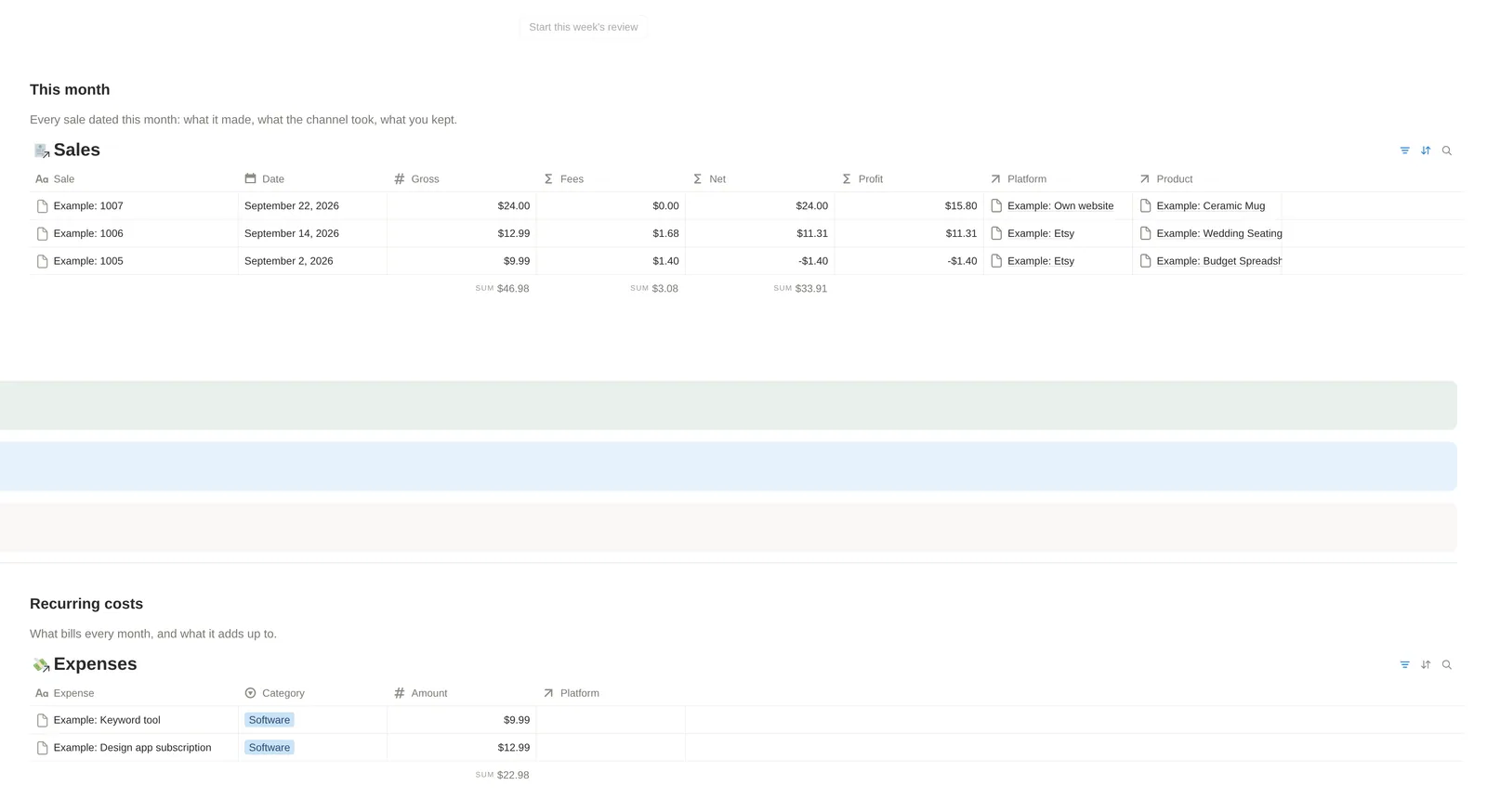
Your latest sales and the monthly bills, on the same screen
The other half of the home page: Recent sales lists your latest sales, newest first, whatever the month, with gross, fees, net and what each kept after goods and shipping, and the sums along the bottom add up every sale in the ledger: here $191.88 gross, $18.03 in fees, $163.86 net and $143.96 profit over the sixteen example sales. Net also takes off any amount you gave back to a customer: example sale 1005 ($9.99) was given back in full, so it nets −$1.40, its fees. Recurring costs lists what bills every month, summed. One button starts this week's review.
Know what each product actually clears
Each product is one row, however many storefronts sell it, with its Kind, digital or physical. Net revenue adds up every sale of it after fees, and Revenue per hour divides that by the hours it took to make: here the example mug has cleared $59.35 from 5 units, $29.68 for each hour it took to make, and the Budget Spreadsheet $57.59 from 8 units, $6.40 an hour.
Know what is on the shelf, and when to reorder
The Stock view lists the physical products only: the count you last made, the level you reorder at, what one unit costs you and how many units have sold. Low stock ticks itself when the count falls to the reorder level; here the example mug has 18 against 10, so it is not ticked. You type the count; no sale takes it down.
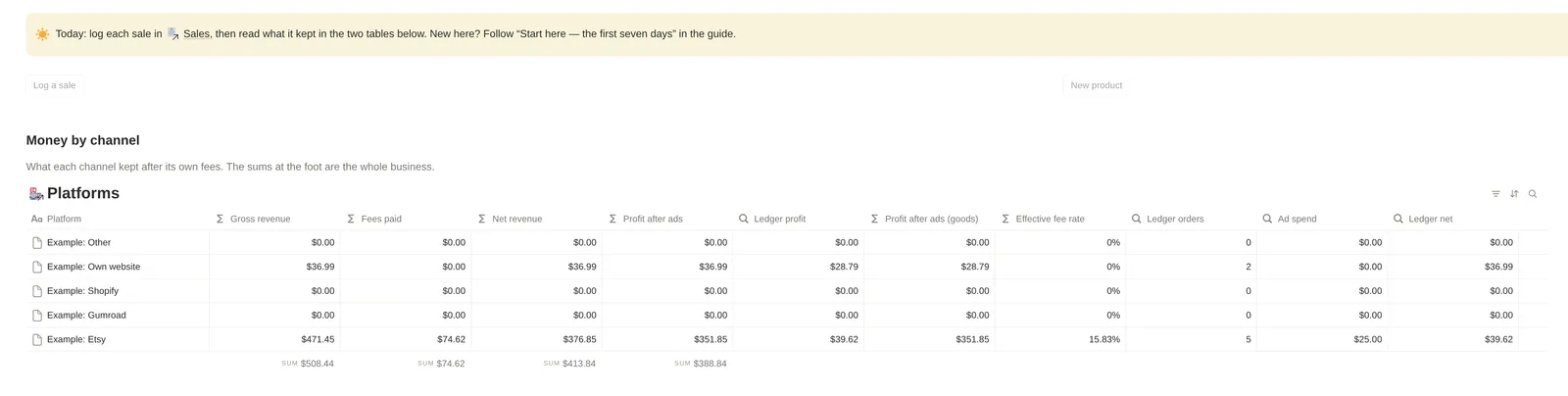
See fees and net by channel without a second spreadsheet
One row per storefront: gross revenue, fees paid, net revenue, profit after ads, the same profit with goods and shipping taken off, and the effective fee rate, each worked out from that storefront's own fee row and the sales logged against it. Here the example Shopify row reads $430.62 gross, $24.19 in fees and an effective fee rate of 5.62%, and the example Etsy row $471.45, $74.62 and 15.83%. The sums along the bottom, $1,565.52 gross and $1,353.42 net, are the whole business.
Ledger net sits next to ad spend and order count: one channel's story
Ledger net adds up what the orders logged one by one kept, Ledger orders counts them, and Ad spend adds up the channel's advertising costs. Here the example Etsy row has $39.62 of ledger net from 5 orders and $25.00 of ad spend, against $376.85 of net revenue: a channel's net revenue can read more than its ledger net, because it also counts the statement totals typed into Months.
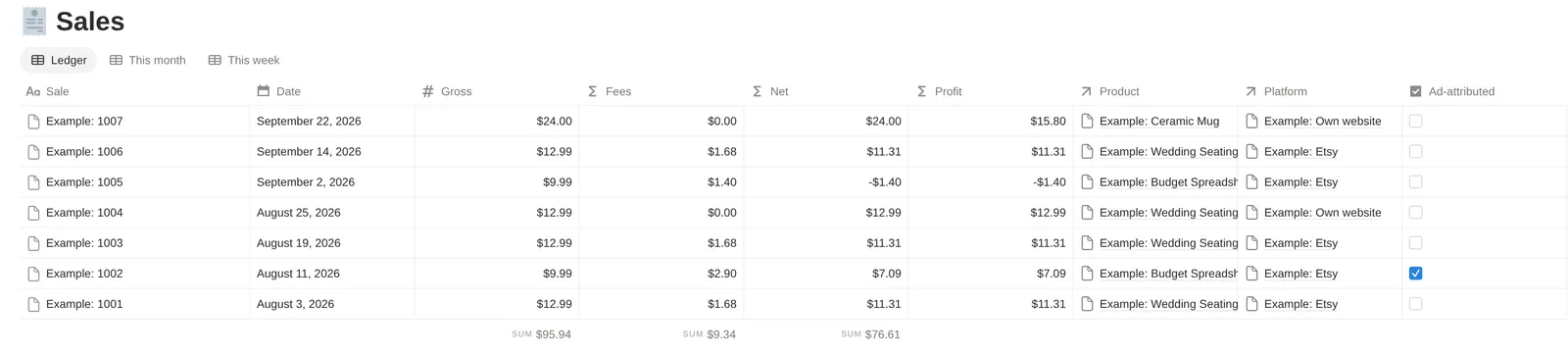
Track orders without losing them in DMs and inboxes
One row per order: pick the product, pick the storefront, type the amount, and tick Ad-attributed when the platform charged its ad fee. Fees and net come from that storefront's own fee row, so example order 1002, $9.99 and ad-attributed, pays $2.90 and nets $7.09. An order on the example Own website row, whose fee cells are left at 0% for your own payment processor's rate, nets its gross. Profit, beside Net, takes a physical order's goods and shipping off: example order 1016, a mug through the Shopify store, is $12.00 gross, nets $11.35 and keeps $7.45. Net also takes off any amount you gave back to a customer: example sale 1005 ($9.99) was given back in full, so it nets −$1.40, its fees.
End the week with a review, not another tab spiral
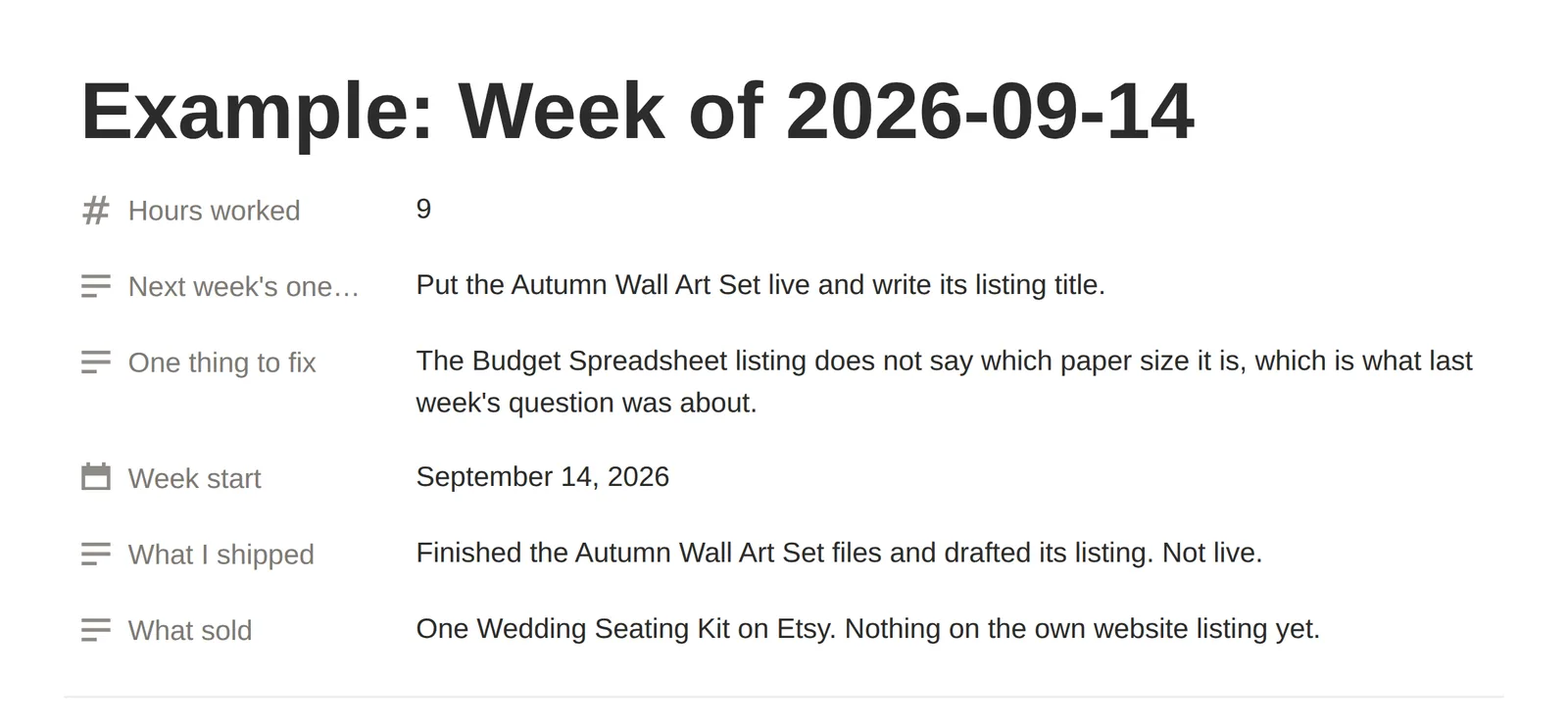
One row a week in Weekly Review: the hours you worked, what sold, what you shipped, one thing to fix and next week's one thing, so the month is written down rather than remembered. This is the example week, filled in: example data, there to replace.
The example week, as a row
Example data: the one example row in Weekly Review, the week of 14 September 2026, with 9 hours worked and its prompts answered, the way the row above reads as a page. Every week you add is one more row, and nothing here is yours until you type it.
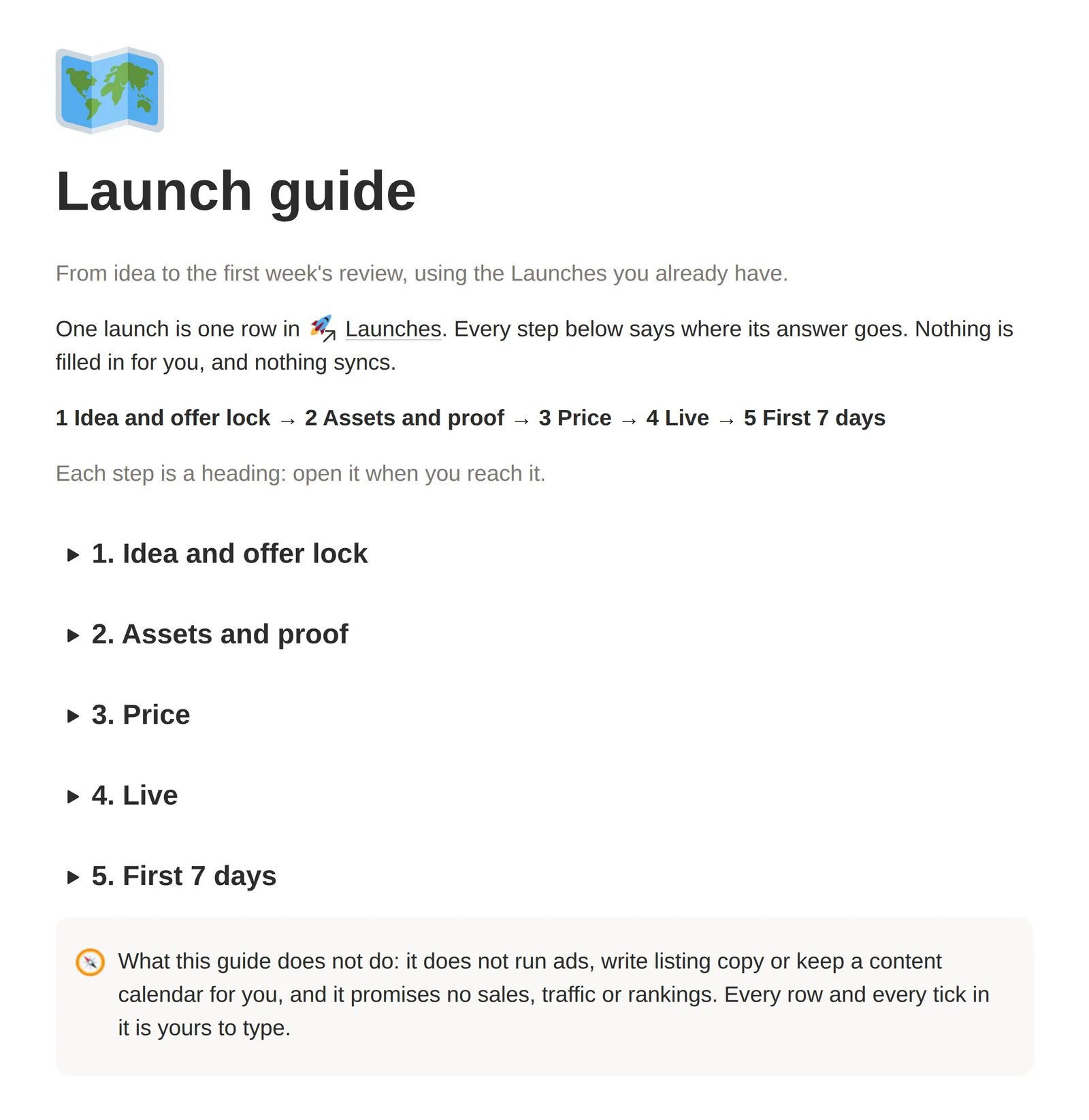
A Launch guide inside the OS, from idea to the first week's review
The Launch guide page as it opens: five steps, each a heading you open when you reach it, from the idea and the offer to the first seven days, using the Launches rows you already have. It does not run ads, write listing copy or keep a content calendar for you, and it promises no sales, traffic or rankings.
Catch subscriptions and fixed costs before they eat the month
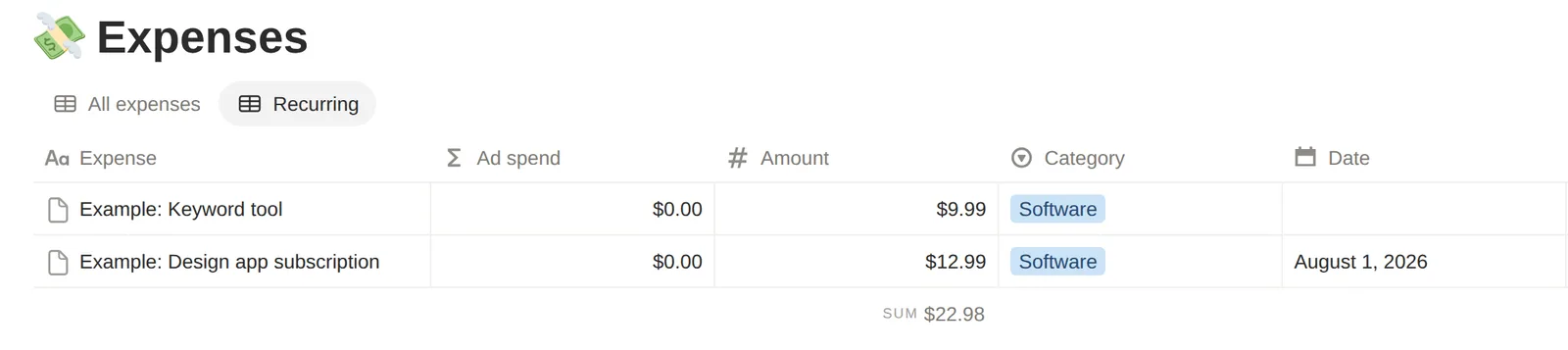
Expenses holds what the business spends, tied to the storefront or product it was for. Tick Recurring on anything that bills every month and the Recurring view lists only those: here, a keyword tool and a design app subscription.





Ten databases, one system
The six core databases and the four modules, what each one is for, and the details.
Here, a product is one row, each of its listings is a row of its own, and every sale is linked to its product and its channel. Each storefront's fee rates sit on its row with the date you checked them, so a sale logged against it works out its own fees and net, and the storefront adds up what it actually kept. You still type the numbers in. The arithmetic is done for you.
The core: set up in the first week
- Platforms
- One row per storefront. The fee table lives here, and so does the money the storefront actually made.
- Products
- The thing you sell, digital or physical, once, however many storefronts it is listed on.
- Listings
- A product on a channel. One row per product per storefront, moving from idea to live.
- Sales
- The ledger, one row per order. Pick the product, pick the channel, type the amount.
- Months
- Monthly totals typed from the platform's own statement, for channels with too many orders to log one by one.
- Expenses
- What the business spends, and which channel or product it was spent on.
Modules: open them when you want them
- Launches
- Each launch, what it is for, and whether the prep actually happened.
- Content
- Every post, pin, video and email, tied to the product or the launch it is for.
- Feedback
- Reviews, questions and file problems, closed out into fixes rather than left in an inbox.
- Weekly Review
- Four prompts, once a week, so the month is written down rather than remembered.
- A fee row per storefront: transaction %, processing % and fixed, per-sale fixed and ad %, with the date you last checked them.
- Products digital or physical: for a physical one, its unit cost, stock on hand and reorder level, with a Low stock flag and a Stock view; on every sale, its units, the shipping charged and what shipping cost, with cost of goods and profit worked out on the row.
- Fees and net worked out on every sale from that storefront's own fee cells, to the cent.
- Months, for a storefront with too many orders to log one at a time: type the statement's totals and the same fees apply.
- Gross revenue, fees paid, net revenue, effective fee rate and profit after ads on every storefront's row, and the same profit with goods and shipping taken off.
- Revenue per hour on every product, from its net revenue and the hours it took to make.
- One listing row per product per storefront, with its price, images, days live and its own status.
- A home page on top: today's routine and three buttons, what each channel kept and your recent sales, then the catalogue, recurring costs, stock to reorder, the modules and a menu of all ten databases.
- Starter rows in every database, each titled Example: something, so one search finds them all when you want them gone.
- In the guide, every database marks which properties are load-bearing and which are safe to rename or delete.
One order, worked through
Example order 1002, from $9.99 gross to $7.09 net, fee by fee.
Example order 1002: $9.99 on the example Etsy row, ad-attributed, at the US-seller fees published when the row was checked on 21 September 2026.
Change one cell on a storefront's fee row and every order on that storefront is worked out again.
| Gross | $9.99 |
|---|---|
| Transaction 6.5% + processing 3% | $0.95 |
| Processing fixed + per-sale fixed | $0.45 |
| Ad fee, 15% on this ad-attributed order | $1.50 |
| Fees | $2.90 |
| Net | $7.09 |
What's included
- The full Lunith Commerce OS, duplicated into your own Notion workspace from the link in your order email: ten linked databases with their views and formulas
- The seven-day Start Here path, one part a day
- Example rows you replace, each titled Example: something, including example fee rows for Etsy, Gumroad, Shopify and your own website
- The guide as a PDF, in US Letter and A4, with how to open the OS on page 3 and every database, property and formula explained by name
- A page of three checks to run straight after duplicating, a page on what the OS does not do, a support note, and every update listed on the updates page
- Four CSV import templates in the zip, for Products, Sales, Listings and Expenses, each headed exactly like its database, with a README for Notion's Merge with CSV
- A README with the three steps to get the OS
- A Launch guide in the Launches area: from idea to the first week's review, using the Launches you already have
- walkthrough.mp4, in the download itself: what you are looking at, logging a sale, where the money shows, the listing pipeline, opening a module, and what you can safely change
- Delivery as soon as your payment clears: a download link on your order page and in your order email
What you need
- A Notion account. The free plan is enough.
- A desktop or laptop screen for setting up and reading the tables.
- A PDF reader, to open the guide.
Manual entry, no live sync, no ranking data. Built for a desktop screen; a free Notion account is enough.
From checkout to week one
Four steps: buy and download, open your link and duplicate, run the three checks, then seven days, one part a day.
Buy, then download
Checkout is on Stripe's page. Your order page and your order email carry the download: the guide as a PDF in US Letter and A4, a short README, and one zip with all of it, the four CSV import templates included.Open your link and duplicate
Your order email carries your own link to the OS; page 3 of the guide says how to use it. Open it while signed in to Notion, click Duplicate, and the whole system copies into your own workspace. A free account is enough.Run the three checks
Straight after duplicating, the guide's check page names three example rows: order 1002 should read Net $7.09, the example Etsy row 5 ledger orders, and the example Wedding Seating Kit 4 units sold. If any is blank, the duplicate did not carry its relations: duplicate again from your link.Seven days, one part a day
The guide's Start Here path takes you through your fees, your products, your listings, a first week of sales, your expenses, reading the numbers and a first weekly review. It is useful from day four.
Built for
- You run a small business that sells, through one channel or several, and want one place to run it from.
- Your numbers live in spreadsheets and platform dashboards, and you cannot easily see what a sale kept after that channel's fees.
- You want each sale's fees worked out from that channel's own rates.
- You would rather type a sale in than connect an app to your shop.
- You want a starting point to make your own: the guide marks which parts are safe to rename or delete, and the example rows, a small shop with three digital products and one physical one, are there to replace.
What it does not do
Worth reading before you buy.
- Manual entry, no live sync. Every number is typed in, order by order or as a monthly total from the platform's own statement; nothing updates itself from a marketplace, shop or payment account, and the import templates bring a history in once.
- No ranking or keyword data. The Keywords field on a listing is your own notes.
- No client work, and no supplier orders, warehouse locations, shipping labels or product variants. A physical product gets a unit cost, units and shipping on each sale, and a stock count you type.
- Fee figures are yours to keep current. The example Etsy, Gumroad and Shopify rows carry US figures with the date they were checked; the own-website row is left at 0% for your payment processor's rate.
- Built for a desktop screen, and no income claims. A phone is for a glance or a quick entry, and nothing here claims or implies a level of sales, traffic or income.
Every limit in full: thirteen lines, worth reading before you buy.
- Every number is entered by hand: order by order in Sales, or as a monthly total in Months typed from the platform's own statement.
- There is no live connection to any marketplace, shop or payment account. Nothing updates itself from a storefront.
- The import templates bring a history in once. Nothing re-imports or syncs by itself afterwards.
- There is no ranking, search-position or keyword data anywhere in it. The Keywords field on a listing is your own notes.
- Fee figures are yours to keep current. The Etsy, Gumroad and Shopify rows each carry the date their figures were checked and a link to that platform's own fee page, because fees change.
- The fee figures on the example rows are US figures: Etsy's for a US seller, Shopify's for its US Basic plan with Shopify Payments, and Gumroad's one price for every seller, in USD. Other countries and plans differ. The own website row is left at 0% for your payment processor's rate.
- It is built for a desktop screen. A phone works for a glance or a quick entry, not for reading a wide table.
- For a given storefront in a given month, use the Ledger or Months, not both, or that month is counted twice.
- Physical products get a unit cost, units and shipping on each sale, and a stock count with a reorder flag, and no more: no supplier orders, warehouse locations, shipping labels or product variants. Stock on hand is a count you type; no sale takes it down.
- Months rows carry no goods or shipping, so a storefront run through Months counts at its net in profit after goods. Log a physical product's orders in Sales to have its goods and shipping taken off.
- No client work. There are no clients, invoices, timesheets, proposals or client portals in it.
- No life planning. There are no habit grids and no dated personal pages: the home page is the day's routine and the money.
- What you get out of it depends on your own shop. Nothing here claims or implies a level of sales, traffic or income.
Also on LunithLabs: two $19 spreadsheet tools, Offer Math and Unit Cost Sheet. You copy their numbers into the OS by hand. See the tools
Questions
Do I need a paid Notion plan?
No. The free Notion plan is enough for everything in it: all ten databases, their relations, formulas and views. You do not need Plus.
How do I get it after I pay?
As soon as your payment clears, your order page (the page you land on after paying; its link is also in your order email) shows the download, and the same links arrive by email: the guide as a PDF in US Letter and A4, a short README, and one zip with all of it, the four CSV import templates included. Your order email also carries your own link to the OS, and page 3 of the guide says how to use it: open it while signed in to Notion, click Duplicate, and the whole system copies into your own workspace.
Is it only for one marketplace?
No. Lunith Commerce OS runs in your own Notion workspace; it works for any channel you track.
What if it is not what I expected?
All sales are final: you get everything as soon as your payment clears, so there is nothing to hand back. What we promise instead is that it works as described. If anything is broken, unclear or missing, email support@lunithlabs.com and we fix it within 3 to 7 business days. Your legal rights are not affected.
Will you add more products?
Two tools work alongside Lunith Commerce OS today: Offer Math and Unit Cost Sheet, $19 each. The launch steps now live inside the OS as a free Launch guide.
Is this a freelancer CRM?
No. There are no clients, invoices, timesheets, proposals or client portals in it. It is built around what you sell, the channels you sell it through, and what each sale kept.
Is it a life planner?
No. There are no habit grids, no dated personal pages and no decorative dashboard: the home page is the day's routine and the money. All ten databases are about the selling side of a small business.
I have been selling for years. Will it feel thin?
Judge it on the money layer: a fee row per storefront, fees and net worked out on every order, a monthly-totals route for busy storefronts, and the effective fee rate and profit after ads on each storefront's row. If you already have that somewhere you trust, you do not need this.
I am new to Notion. Will it be too much?
Six databases are the core, and four are modules that stay shut until you open them. The guide's Start Here path takes one part a day for seven days, and day one is a single database: your storefronts and their fees.
Is there a walkthrough video?
Yes. walkthrough.mp4 is in the download itself, not a link to somewhere else. It covers what you are looking at, logging a sale, where the money shows, the listing pipeline, opening a module, and what you can safely change.
Does it work on a phone?
It is built for a desktop screen. A phone is fine for reading a number or logging a sale; the wide tables do not lay out the same way on one.
Does it work for physical products?
Yes. Set a product's Kind to Physical and give it a unit cost, the stock you have on hand and the level you reorder at; on each sale, type the units and the shipping charged and paid. Profit then takes the goods and the shipping off, Low stock ticks when the count falls to the reorder level, and the Stock view and the home page's Stock to reorder list them. It does not raise supplier orders, keep warehouse locations, print shipping labels or handle variants such as sizes, and the stock count is one you type: no sale takes it down.
I only sell through one channel. Is it still useful?
Yes. The fee arithmetic works the same for one channel as for five, and a second channel is one more row when you add it.
Can I bring in the numbers I already have?
Yes, once. Four CSV templates in the download's zip are headed exactly like Products, Sales, Listings and Expenses, and Notion's Merge with CSV brings a filled one in; the guide's Bringing your numbers in page goes through it. After that it is typed in as you go, and nothing syncs.
Does it sync with my shop, or show my search ranking?
No. Every number in it is one you type, order by order or as a monthly total from the platform's own statement. There is no live connection to any marketplace, shop or payment account, no ranking data and no keyword tool. The Keywords field on a listing holds your own notes.
What does it not do?
Every number is entered by hand: order by order in Sales, or as a monthly total in Months typed from the platform's own statement.
There is no live connection to any marketplace, shop or payment account. Nothing updates itself from a storefront.
The import templates bring a history in once. Nothing re-imports or syncs by itself afterwards.
There is no ranking, search-position or keyword data anywhere in it. The Keywords field on a listing is your own notes.
Fee figures are yours to keep current. The Etsy, Gumroad and Shopify rows each carry the date their figures were checked and a link to that platform's own fee page, because fees change.
The fee figures on the example rows are US figures: Etsy's for a US seller, Shopify's for its US Basic plan with Shopify Payments, and Gumroad's one price for every seller, in USD. Other countries and plans differ. The own website row is left at 0% for your payment processor's rate.
It is built for a desktop screen. A phone works for a glance or a quick entry, not for reading a wide table.
For a given storefront in a given month, use the Ledger or Months, not both, or that month is counted twice.
Physical products get a unit cost, units and shipping on each sale, and a stock count with a reorder flag, and no more: no supplier orders, warehouse locations, shipping labels or product variants. Stock on hand is a count you type; no sale takes it down.
Months rows carry no goods or shipping, so a storefront run through Months counts at its net in profit after goods. Log a physical product's orders in Sales to have its goods and shipping taken off.
No client work. There are no clients, invoices, timesheets, proposals or client portals in it.
No life planning. There are no habit grids and no dated personal pages: the home page is the day's routine and the money.
What you get out of it depends on your own shop. Nothing here claims or implies a level of sales, traffic or income.
What does logging a sale involve?
A new row in Sales: pick the product, pick the storefront, type the amount, and tick Ad-attributed if the platform charged its ad fee on that order. Fees and net fill themselves in. For a physical product, also type the units and the shipping charged and paid, and the profit after goods and shipping fills itself in too. If a storefront has too many orders for that, type its monthly statement into Months instead.
Are the fees already filled in?
For every example storefront but your own website. The Etsy row carries Etsy's published US-seller figures, the Gumroad row Gumroad's one price for every seller, and the Shopify row its US Basic plan with Shopify Payments. Each row shows the date its figures were checked and has a link to that platform's fee page in its Fee source cell. Fees change and other countries and plans differ, so check them against your own fee page. It does not work out VAT or sales tax. The own-website row is left at 0% for your payment processor's rate; until you fill it in, that storefront nets its gross.
What if the duplicate comes across broken?
The guide has a page of three checks for straight after you duplicate: example sale 1002 should read Net $7.09, the example Etsy row 5 ledger orders, and the example Wedding Seating Kit 4 units sold. If any is blank, duplicate again from your link. If that does not fix it, write to us with what you saw, and we will work with you to get it working.
Will it be updated?
Updates we release for it are free for everyone who bought it, and each one is listed on the updates page. An update is meant to be additive: new properties, views or pages. We avoid renames that break a formula, and the updates page lists every change. You take it by duplicating a fresh copy from the same link; the copy you already have is yours to keep.
Is this a subscription?
No. It is a one-time purchase: you pay once, and the copy you duplicate into your workspace is yours to keep. Updates we release for it are free for everyone who bought it and listed on the updates page; you take one by duplicating a fresh copy from the same link.
How is this different from a profit app that connects to my shop?
A profit app connects to your store and updates itself, for a monthly fee that often rises with orders or channels. Lunith Commerce OS connects to nothing: you type each sale, or a month's totals from the platform's statement, and it works out the fees and what you kept. You pay once, every channel sits in one place, and the numbers live in your own Notion. If you need it to update itself, a connected app is the better buy.
Why is it $59.99?
Because of what is in it: ten related databases under one home page, a fee table per storefront, fees and net worked out on every sale, a monthly-totals route, profit after ads per storefront, four modules, CSV import templates, and a guide that explains every database, property and formula by name. If a simpler tracker covers what you need, it is the better buy.
Lunith Commerce OS
Organize, plan and track your business in one place.
$59.99USD
Access as soon as your payment clears · Notion duplicate · One-time
Pay once. It lives in your own Notion. Your numbers stay yours.
Built right, kept right.
You get the full system as soon as your payment clears, so all sales are final. What we promise instead: it works as described.
If anything is broken, unclear or missing, email support@lunithlabs.com and we'll fix it within 3 to 7 business days. We read every message, and fixes ship as updates to everyone who bought.
Lunith Commerce OS is a one-time purchase. Updates we release for it are free for everyone who bought it. It doesn't include any other or future product.
You can ask us for a written copy of this policy. Your legal rights are not affected.
Every update we ship is listed on the updates page. See the updates
- Format
- Built in Notion, delivered as a 42-page PDF guide (US Letter and A4); your own link to open it is in your order email
- Works with
- A free Notion account and a desktop screen; a phone is for a glance or a quick entry. The guide opens in any PDF reader.
- Delivery
- Delivered by us as soon as your payment clears: a download link on your order page and in your order email. Your order email carries your own link to open it and duplicate it into your own free Notion workspace; the guide says how.
- License
- One purchase covers your business and everyone who works for it; duplicate it as often as you need; don't resell it, pass on copies or share the link outside your business.
Sold direct by LunithLabs. Your files arrive as soon as your payment clears, and support@lunithlabs.com reaches the people who made them.
Etsy, Gumroad and Shopify are trademarks of their respective owners. This product is not affiliated with, endorsed by or sponsored by any of them, nor by Notion Labs, Inc.
New tools and articles, by email
When we add a tool or publish an article, you get an email about it. We send one message first to confirm your address, and every email has a one-click unsubscribe.